
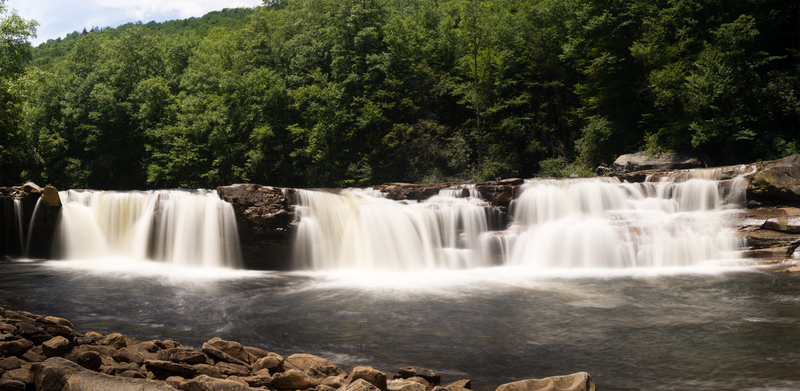
Ever wonder how photographers get those cool shots of soft flowing water? You can do it with either your digital SLR, your point-and-shoot digital camera or even your iPhone. Here’s how!
The Basics (for cameras)
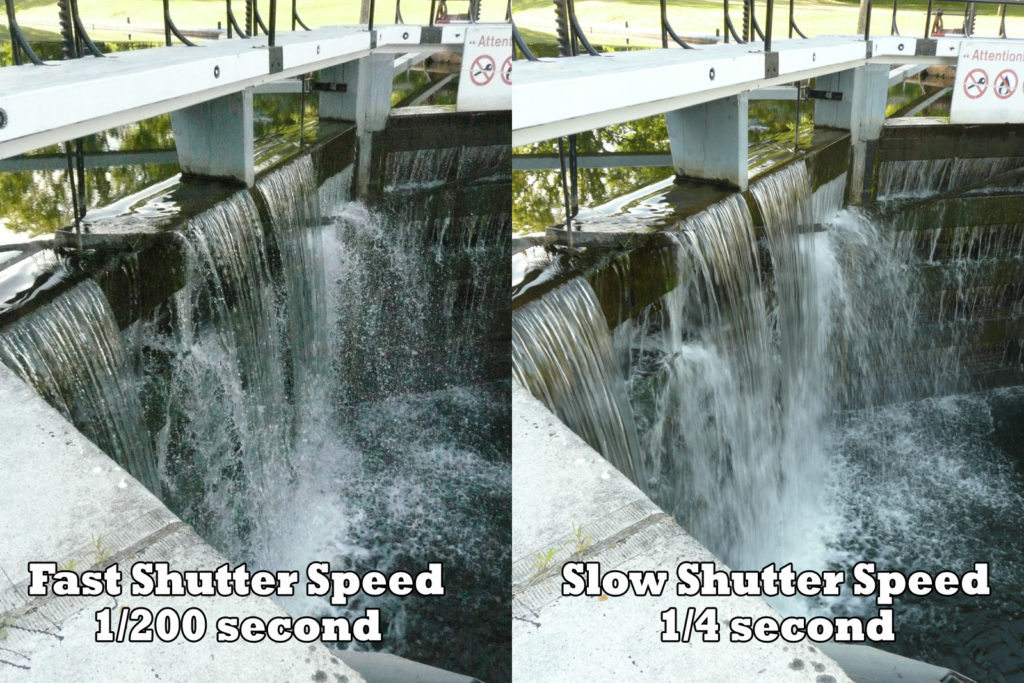
Giving the water that smooth look requires a slow shutter speed. Something like a 1/4 of a second or slower. Below you can see the difference:
A slow shutter speed means that you will need to hold your camera steady, so you’ll need a tripod or some other rigid support.
 DSLR CAMERA
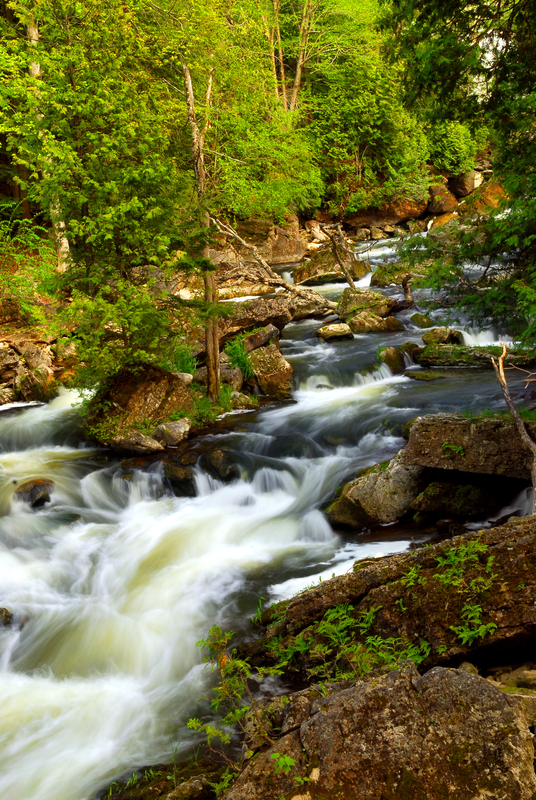
On a DSLR where you have complete control of all of the camera settings, using a slow shutter speed is relatively easy. Set your camera to a low ISO (100), and using Aperture Preferred Mode, set the f-stop to f22 or f32. The camera will automatically select a matching slow shutter speed. If you are in bright sunlight the shutter speed may still not be slow enough so you will need to add either a polarizing or a neutral density filter to reduce the amount of light coming through the lens.
POINT-AND-SHOOT CAMERA
These less complex cameras don’t offer as many controls, but you can still force a slower shutter speed. The two photos above were taken with my wife’s “fun” camera. By selecting a low ISO number the camera will select a slower shutter speed. The best time of day to do these kind of photos is when the light levels are naturally lower – either early or late in the day.
FUN WITH YOUR iPHONE
You’ll need an iPhone 6S, 7, 8 or the new X and iOS11, the latest edition of the Apple mobile operating system.
To make it work, you’ll need to take the picture with Live photos, the new tool Apple added to the iPhone camera with the 6S in 2015 that offered a snippet of live video in your photo.
It’s a cute gimmick, but hard to share, so because of that, it doesn’t get used much.
But with Long Exposure, Live photos is definitely worth using.
Here’s how to do it:
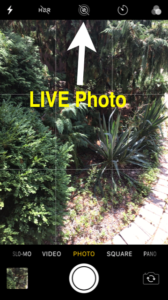 — Open up the iPhone camera, and make sure Live photos is ON. Tap the round icon at the top of the screen, in the middle, to turn it on.
Then take a photo, preferably of something with motion. Leave Live photo ON.
— Now that you’ve got the photo, open up your shot in the Photos app and swipe up.
You will now see four choices: the live video snippet, Loop, Bounce or Long Exposure.
Loop is a short video that runs over and over, while Bounce is similar, but it goes back and forth between forward and backward motion.
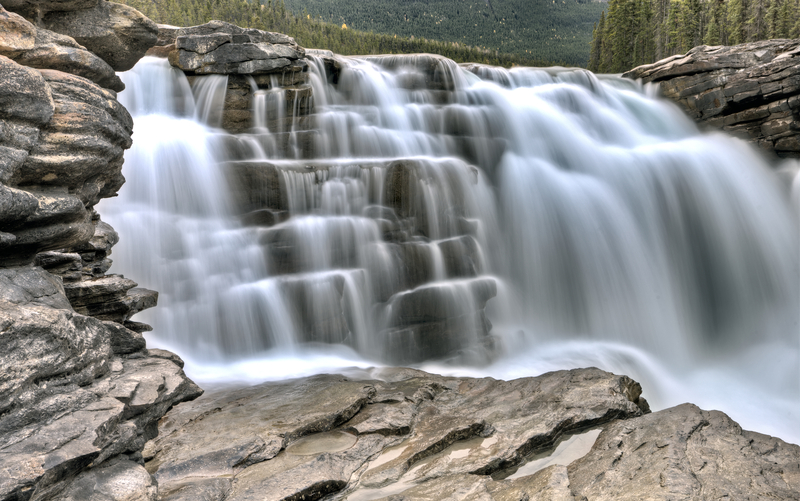
Long Exposure is the coolest effect, showing your flowing water as cloud-like and dreamy, unlike the sharp and crisp stopped action water you’d normally see.
Once you get the photo, you can share to social media or save to your computer.
The great thing about digital photography is that you can see immediately if you have enough blur or if you need to change the composition.
I wasn’t near a waterfall or rapids or the seashore when I wrote this, but I have simulated a waterfall in the two photos below using the sprinkler watering head on our garden hose. These were shot on my iPhone using the exact technique mentioned above.
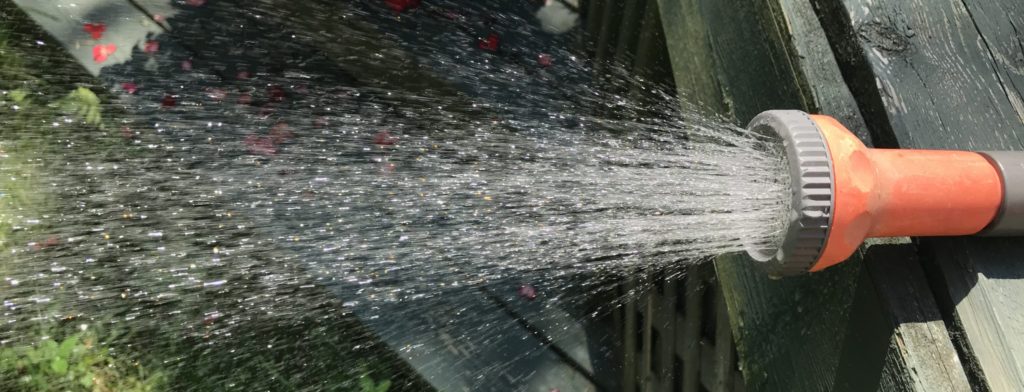
Single shot – Live photo OFF. Notice how the water is frozen with sharply focused droplets.
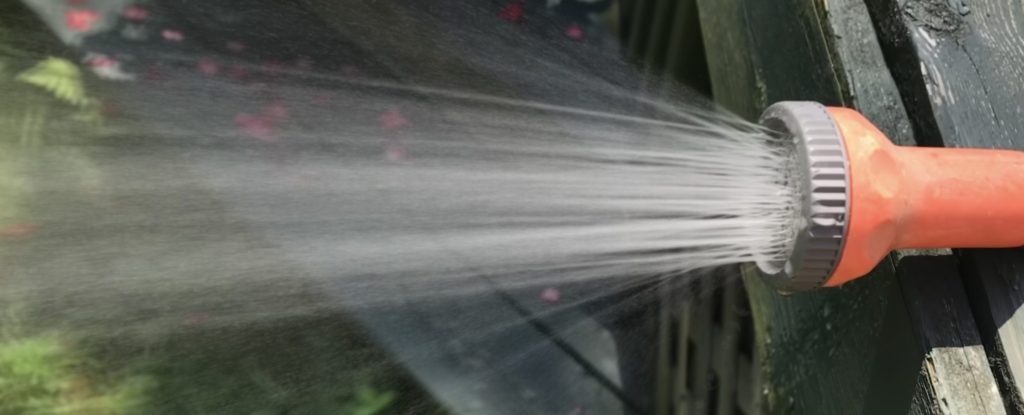
With Live photo ON. The iPhone software added the blur effect for me and I didn’t even need to hold the camera steady for a long exposure.
Give it a try. I’d love to see your results. Send me a image file at roger@arranelstudios.com
With your permission, I’ll share some of them here in a future post.

